
UX / UI design✦Case study: Weed ID Deck NT
UX and UI designfor the people who use it.
UX and UI design for websites and apps. UX and UI design for websites and apps. Clickable Figma prototypes tested with your real users before any code is written, so the build fits how they work. Here is how that worked on one app, from the first sketch to the files our developers built from.
Exploration
Before a single screen is drawn, we learn how the product will be used.
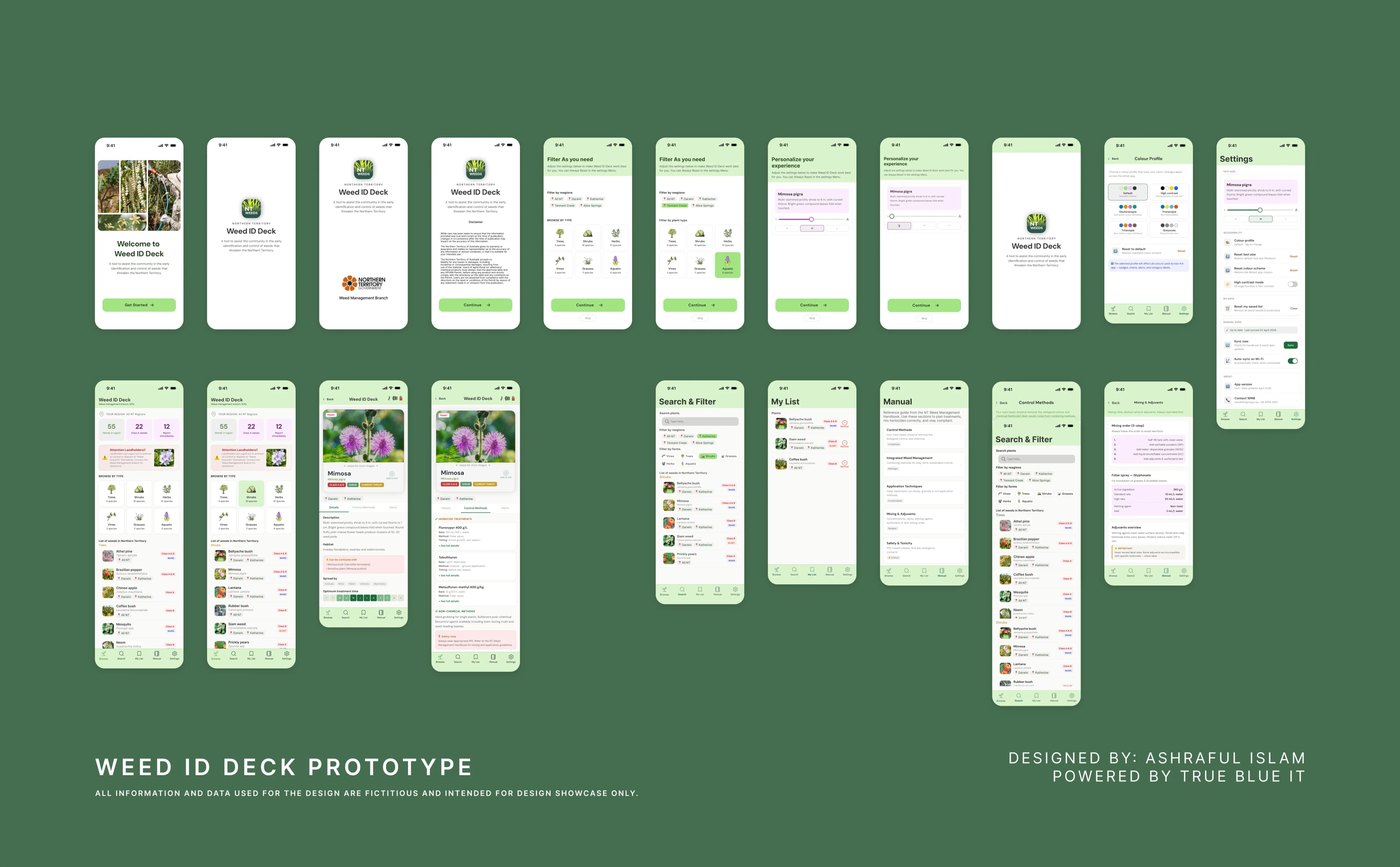
Weed ID Deck NT is used by rangers and land managers standing in long grass with one hand free and no reception. So the exploration started with the job to be done: identify a plant by what you can see, then find out whether it is declared. Early flows, paper sketches and a clickable Figma prototype were tested with the people who would use it, and the structure that survived was six plant types, a search, and a declaration status on every card.
Typography
A scale that reads at arm's length, in sunlight, on a small screen.
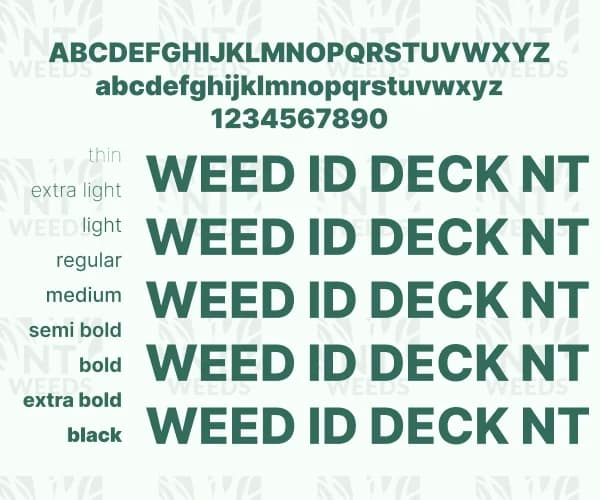
The app uses the platform's own typeface so it feels native on iOS and Android and loads instantly offline. Common names are set heavy, scientific names in a lighter italic, and section labels in small tracked capitals, so a list of sixty-two plants can be scanned without reading every line. Every size is a step on one scale, which keeps the screens consistent and gives the developers a short list of styles to build.
- Weed ID DeckScreen title · 34pt · 700
- TreesSection · 15pt · 600
- Athel pineCommon name · 17pt · 600
- Tamarix aphyllaScientific name · 15pt · 400
- 62 of 62 plantsCount · 13pt · 500
- Class A & BBadge · 12pt · 700
Colour
One bush green for the brand, a colour for each plant type, and red kept for alerts.
The green comes from the Territory scrub the app is used in. Each plant type carries its own colour on the home deck and on its cards, so a user learns to find trees or aquatic weeds by colour before they read a word. Declaration status uses a second, quieter set: a soft red for declared classes, green for Weeds of National Significance, grey when a plant is not declared, and a hard red reserved for alert species. Every pair was checked for contrast against the backgrounds it sits on.
- #57753fBush greenHeaders, the home deck, the active tab
- #eff1edFieldSearch field and list background
- #323331InkCommon names and body text
- #838383Latin greyScientific names, in italic
- #7b6a4bTree
- #ba8f32Shrub
- #bb6b29Herb
- #794134Vine
- #899649Grass
- #376c5dAquatic
- #ffdadaDeclaredClass A, Class B
- #7dc975WoNSWeed of National Significance
- #ff0000AlertAlert species only
- #d5ddd5Not declared
Visual screens
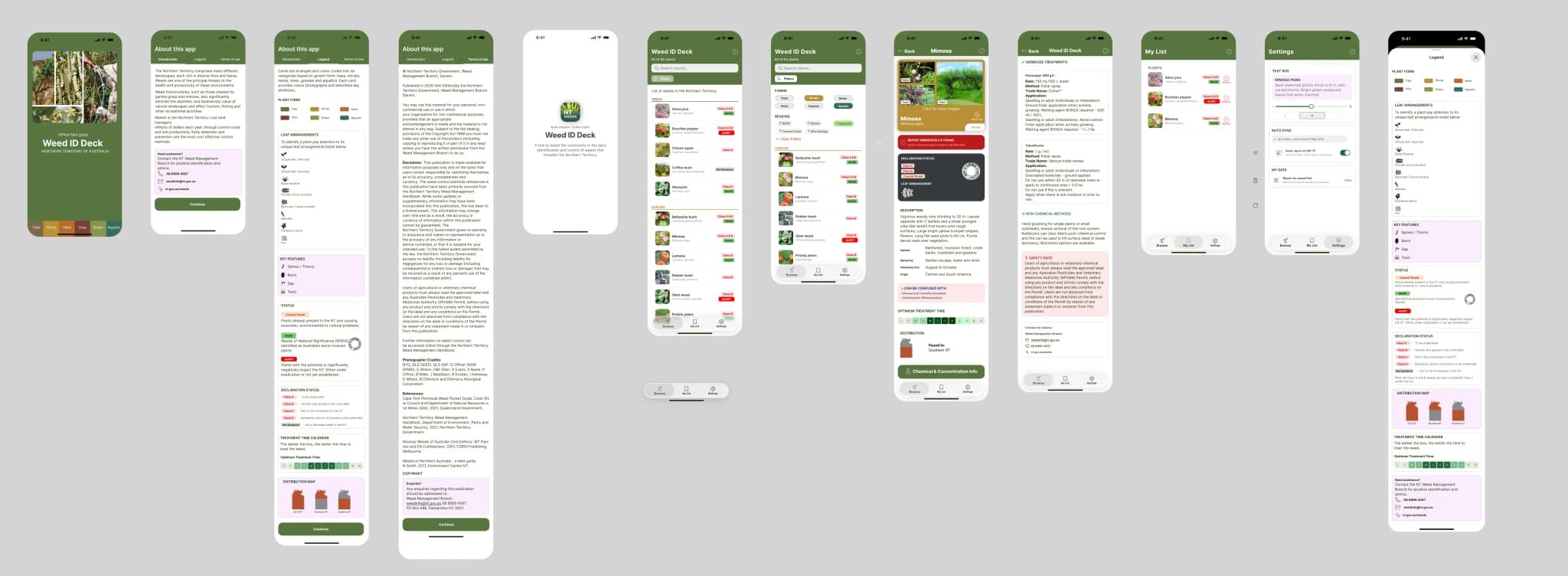
The final screens, as shipped to the App Store and Google Play.
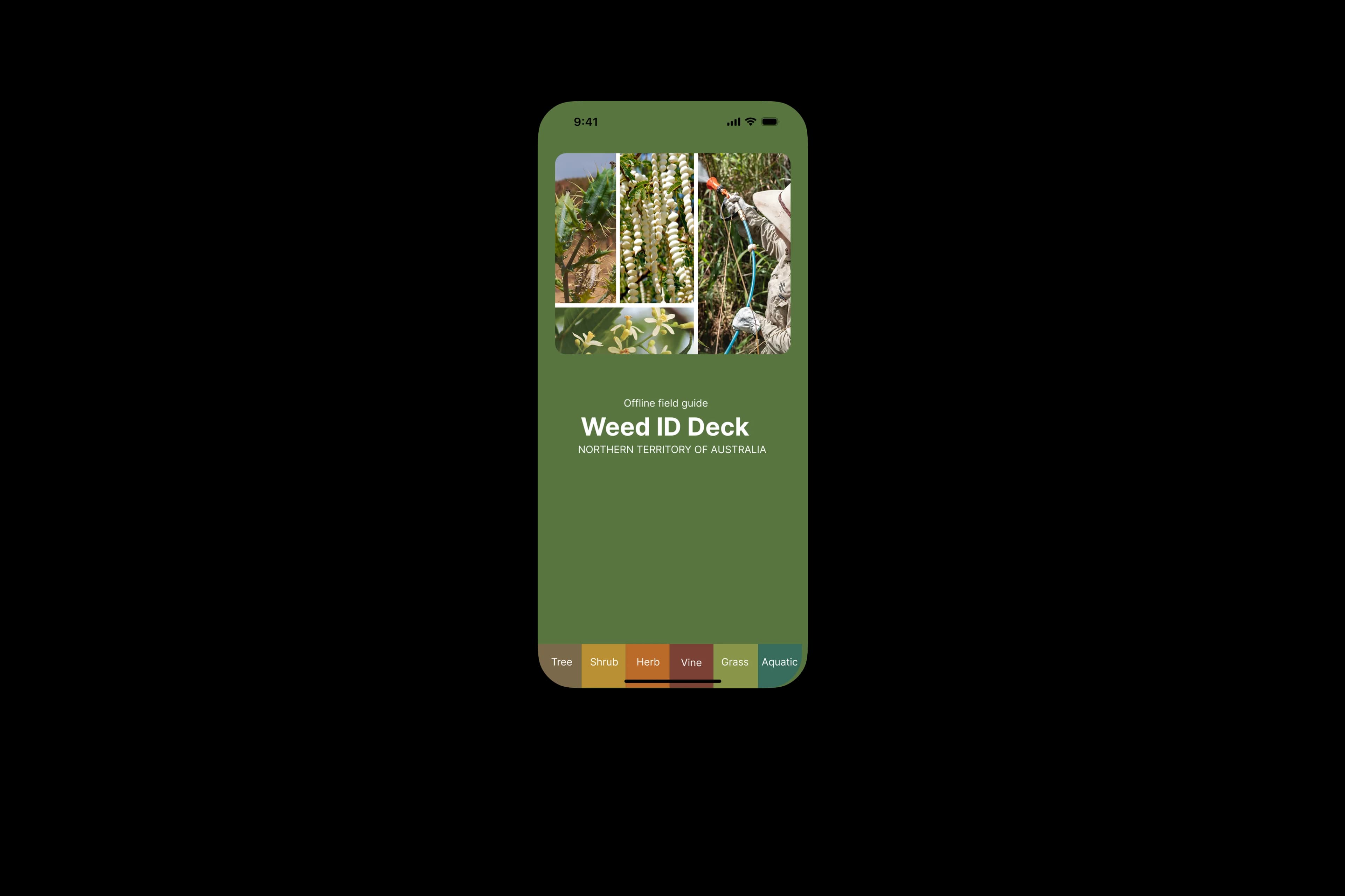
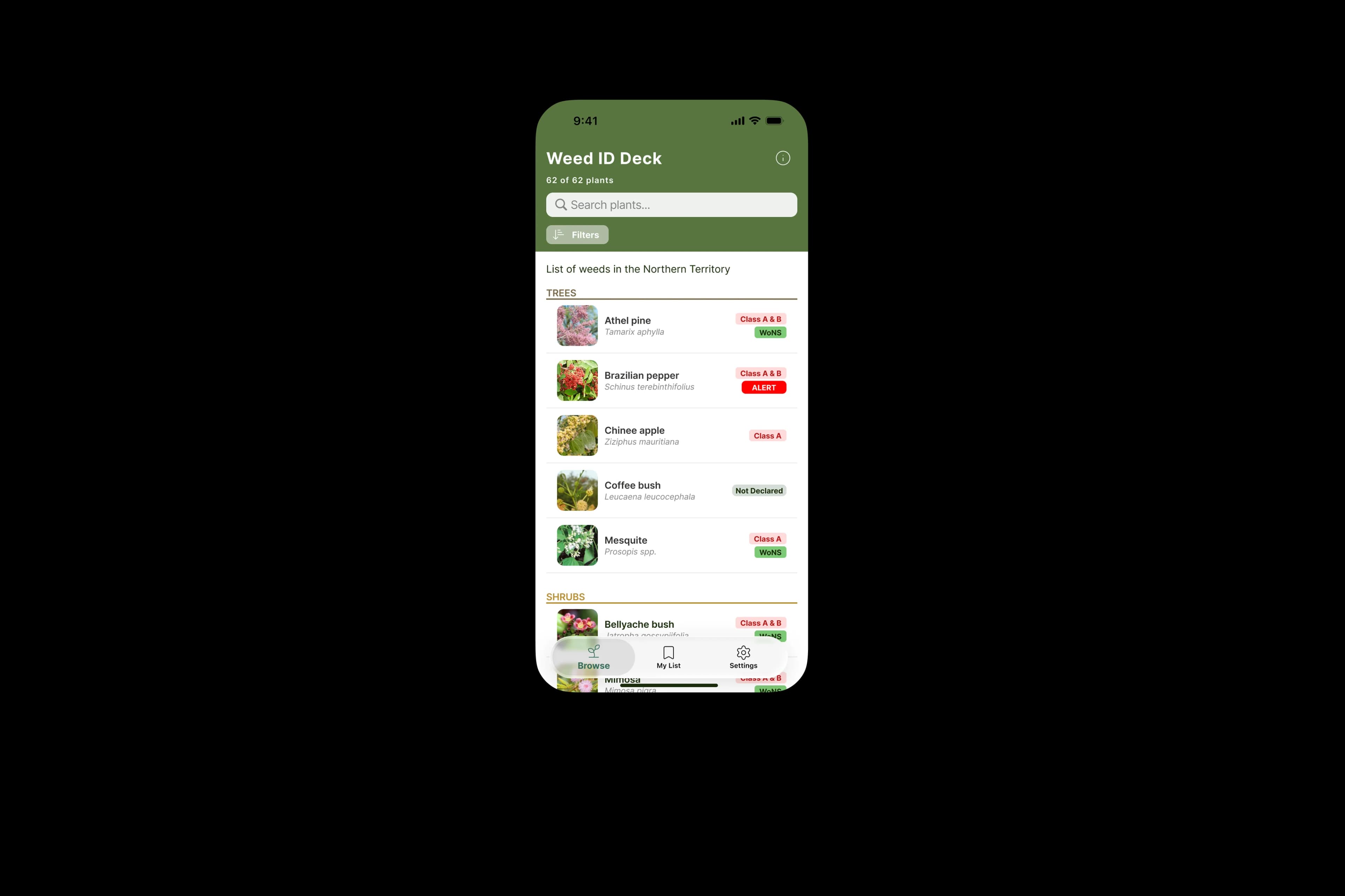
The home deck opens on photographs and the six plant types. The browse screen stacks the full list under a search field and filters, with the declaration badges on the right so they line up down the page. Both are built from the same handful of components, which is why they look like one product rather than a set of pages.
- Splash Screen: Introducing the six plant types
- Browse: search, filters and declaration badges
Developer handoff
The design is finished when the developers have everything they need, not when the mock-ups look done.
Because the same team designs and builds, hand-off is a working session rather than a file dump. The developers get the Figma file in Dev Mode with components named to match the code, the colour and type tokens as values they can paste in, every icon and photograph exported at the sizes the app needs, and the prototype to compare the build against. Anything that changes during the build goes back into the file, so the design stays the record of what shipped.
- 01Figma file in Dev Mode, components named to match the code
- 02Colour and type tokens as paste-ready values
- 03Icons and photographs exported at every required size
- 04Clickable prototype of every flow, to test the build against
- 05Edge states: empty lists, no reception, long names, small screens
- 06A change log, kept while the build is under way
Have a product that needs this kind of care?
Tell us who will use it and what they need to get done. We will come back with a plan for the exploration, and the prototypes follow in weeks two and three.